
Ever had one of those mornings where everything’s going fine—coffee in hand, bag on your shoulder—and right when you grab your phone, it hits you?
The lock screen.
Staring at you like, “Password yaad hai…?” And boom—you blank out.
Happens to the best of us. That mini heart attack is real. But here’s the good news: unlocking a phone in 2025 is easier, smarter, and faster than ever, whether you’re on Android or iPhone. No tech degree required. No stress required. Just the right method—and you’re back in.
In this guide, we’ll break down the most reliable ways to unlock any Android or iOS device, explain why screen locks matter, and share simple tips to make sure you never get locked out again. Ready? Let’s get your digital life moving again.
What Exactly Is a Screen Lock (And Why Do You Sometimes Need to Unlock It)?
A screen lock is your phone’s personal security guard.
It protects your pictures, chats, banking apps—basically your whole life—from outsiders.
Android gives you tons of lock options: PIN, pattern, password, fingerprint, face unlock—even in-display sensors on Samsung, Pixel, Xiaomi, etc.
iPhones rely heavily on Face ID or Touch ID backed by a passcode.
Good for privacy, bad when you forget the PIN or your kid decides to play Picasso with the pattern screen.
Common reasons people need to unlock their phones:
- Forgot their password (birthday digits mixed up, anyone?)
- Kids entered the wrong pattern too many times
- Bought a used phone that still has the old owner’s lock
- Biometric sensors stopped working
- Or the classic: “Updated phone last night… woke up to chaos.”
The security is strong—really strong—which is great. But when your own device locks you out, you need a proper game plan.
Before You Try Unlocking: Important Precautions
Before pressing buttons randomly, do these things first:
✔ 1. Try Backing Up Remotely
If you can access Google Drive or iCloud from another device, back up whatever you can. Even partial backups help.
✔ 2. Try Biometrics Once More
Sometimes you don’t need the password at all—your fingerprint or face might still work.
✔ 3. Prepare Your Tools
You may need:
- A computer (Mac or Windows)
- USB cable
- Your Google or Apple ID login
✔ 4. Understand the Risks
Most free methods erase everything. Paid tools claim “no data loss,” but always choose trusted, reviewed ones.
Personal lesson? I once skipped backup and lost an entire vacation album. Painful. Don’t be me.
Top Ways to Unlock an Android Phone in 2025
Android offers plenty of unlock methods—some quick, some technical. Here are the best ones:
Method 1: Factory Reset Through Recovery Mode
The fastest—but wipes everything.
- Power off your phone.
- Press the button combo (usually Power + Volume Down, Samsung uses Power + Volume Up).
- Use the volume keys to choose Wipe data/factory reset.
- Reboot.
Works on Android 14–16 and newer foldables too.
Good for stubborn locks, but all data resets unless backed up.
Method 2: Google Find My Device (Remote Erase)
Perfect if the phone is connected to the internet.
- Visit android.com/find.
- Sign in with your Google account.
- Click Erase Device.
This resets the lock remotely. Great for lost or forgotten phones.
Method 3: “Forgot Pattern/PIN” (Older Android Only)
On Android 4.4 or earlier: after multiple wrong attempts, tap Forgot Pattern → log in with Google.
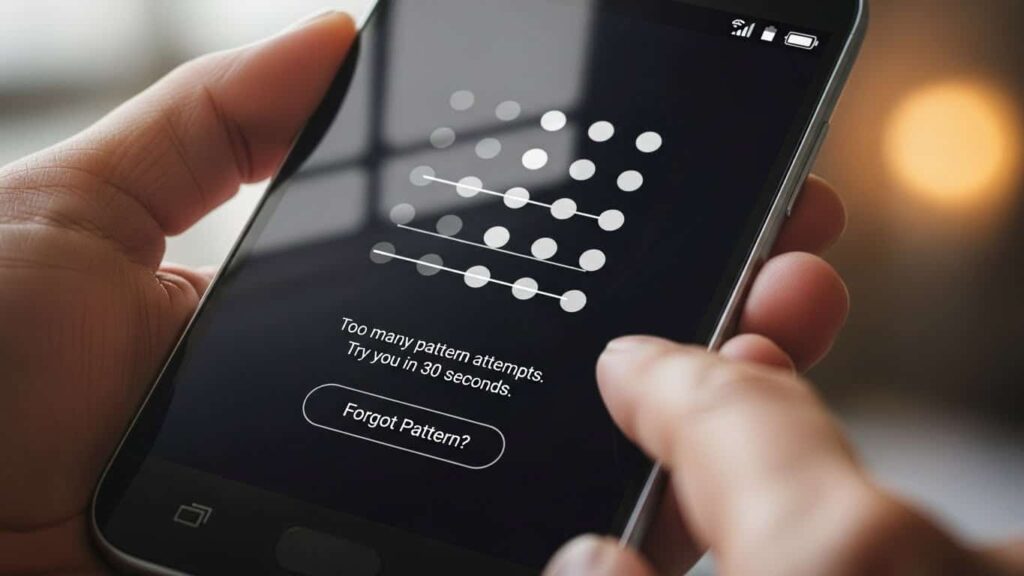
Rare in 2025, but still works on older devices.
Method 4: Third-Party Tools (No Data Loss Options)
If you want to avoid wiping:
Popular tools:
- PassFab Android Unlock
- Dr.Fone Screen Unlock
How it works:
- Install on your PC.
- Connect phone via USB.
- Select Remove Screen Lock.
Supports thousands of models including Samsung, Xiaomi, Vivo, Oppo.
Usually costs around $30–50.
I tested PassFab on a locked Xiaomi—smooth, and no photos were lost.
Method 5: ADB or Safe Mode (Advanced Users Only)
- Safe Mode helps if a third-party app locked your screen.
- ADB can remove “gesture.key” files—but only if USB debugging was already enabled.
If you’re not techy, skip this one.
How to Unlock an iPhone in 2025
Apple security is tighter than ever, so most methods involve a reset. But they’re clean, simple, and official.
Method 1: Restore Through Finder/iTunes (Official Method)
- Connect iPhone to computer.
- Put phone in recovery mode:
- Press Volume Up → Volume Down → Hold Side Button.
- Choose Restore.
It reinstalls iOS and removes the lock.
Method 2: Find My iPhone (Remote Erase)
- Go to icloud.com/find.
- Select your device.
- Click Erase iPhone.
Activation Lock will require your Apple ID afterward.
Method 3: Third-Party Unlock Tools
New 2025 apps offer easier flows:
- MagFone iPhone Unlocker
- Tiger iOS Unlocker
Some even work without a computer, using Bluetooth or QR pairing.
A friend saved her iPhone 15 after her toddler messed up the passcode.
Cost: around $40.
Method 4: Try Face ID/Touch ID or Siri Glitches
If biometrics still work, you’re in.
Siri loopholes are mostly patched—but no harm trying “Hey Siri, open Clock.”
Android vs iPhone: Quick Unlock Comparison
| Method | Android | iOS | Data Loss? | Time | Cost | Difficulty |
|---|---|---|---|---|---|---|
| Factory Reset | ✔ | ✔ (via PC) | High | 5–10 mins | Free | Medium |
| Remote Erase | ✔ | ✔ | High | 5 mins | Free | Easy |
| Forgot Pattern | ✔ (old OS) | ✖ | Low | 2 mins | Free | Easy |
| Third-Party Tools | ✔ | ✔ | Low–None | 10–20 mins | Paid | Easy |
| ADB/Siri Hacks | ✔ | Limited | Low | 15 mins | Free | Hard |
Android = more flexibility
iOS = more security, fewer free options
Pros & Cons of Each Unlock Method
Factory Reset
✔ Fast
✔ Works on all devices
❌ Complete data wipe
❌ FRP may ask for Google login afterward
Remote Erase
✔ Works from anywhere
❌ Data still wiped
❌ Internet required
Third-Party Tools
✔ Possible no-data-loss
✔ Beginner-friendly
❌ Paid
❌ Rare compatibility issues
Biometrics
✔ Easiest
❌ Useless if broken or disabled
Pro Tips to Avoid Lockouts in the Future
- Use fingerprint/Face ID as your main unlock.
- Enable Smart Lock (Android) or Family Sharing (iOS) for recovery help.
- Turn on daily cloud backups.
- Use a password manager to store your PIN safely.
- Review your security settings monthly.
These tiny habits save huge headaches.
Frequently Asked Questions
Q1: Can I unlock an Android without losing data?
Yes—use tools like PassFab or Dr.Fone. If USB debugging was enabled earlier, even better.
Q2: Fastest way to unlock an iPhone without a computer?
MagFone’s mobile method works great for iOS 18+.
Q3: Does factory reset bypass Samsung FRP?
Not fully—you’ll still need your Google account after reset.
Q4: Are third-party tools safe?
Trusted paid ones are. Avoid unknown “free bypass” sites.
Q5: How can I avoid forgetting my pattern or PIN?
Use an easy but memorable shape—or switch to fingerprint/face unlock.