
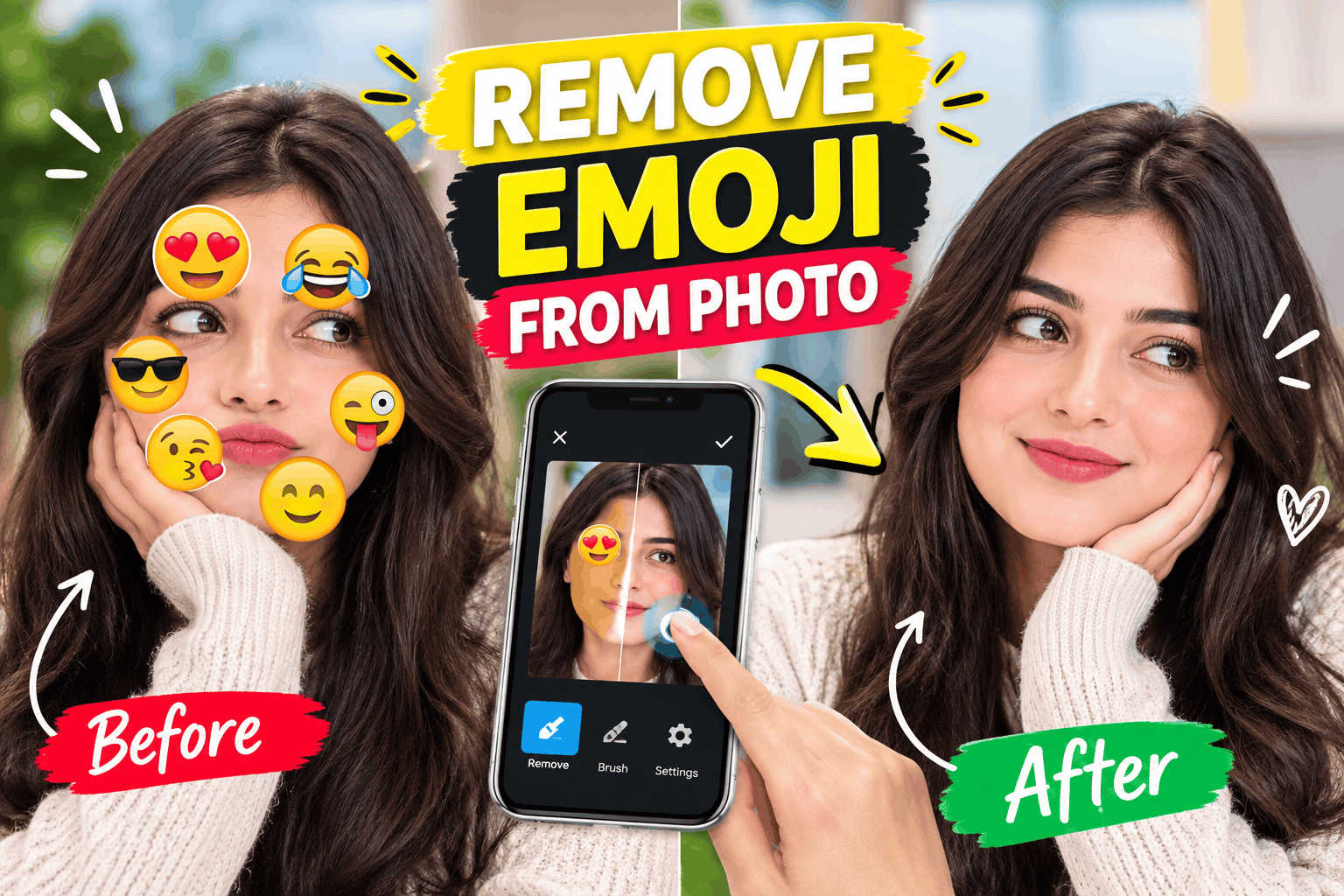
Quick guide • 5 min read • Works on Android and iPhone
You click a nice photo, add a cute emoji, and then change your mind. Or someone sends you a picture covered with emoji stickers, and you just want the clean photo back. Sounds like a headache, right?
Good news: with a free AI photo editor like Picsart, you can remove an emoji from a picture in a few seconds. No design skill needed. In this guide, I will show you the easy way, step by step.
Can You Really Remove an Emoji From a Photo?
Yes, if the emoji is part of the picture (a flat image). The app looks at the area around the emoji and fills the spot with matching background. This is called an Object Remover or Object Eraser.
It works best when the emoji is small and the background is simple, like a wall, sky, grass or skin. If the emoji covers a face or a lot of detail, the result may need a little extra touch-up.
Why Use Picsart for This?
- Built-in Object Remover. The app has a tool made just for erasing unwanted things from photos.
- Easy for beginners. You mark the emoji and the AI does the rest.
- Free to start. You can download it for free. Some advanced features need a paid plan (Plus or Pro).
- Trusted by many. The app has over 1 billion downloads on Google Play.
- More tools in one place. Background remover, AI enhance, retouch, stickers, collage and more.
Download Picsart on Google Play
How to Remove Emoji From a Pic: Step by Step
- Install and open Picsart. Download it from the link above and open the app.
- Add your photo. Tap the plus (+) button and pick the picture that has the emoji.
- Find the Object Remover tool. Look for “Remove” or “Object Remover” in the tools list.
- Mark the emoji. Use your finger to brush over the emoji. Cover the whole emoji, even the edges.
- Tap Remove. The AI erases the emoji and fills the spot in a moment.
- Check the result. Zoom in. If a small mark is left, brush it again and tap Remove one more time.
- Save your photo. Tap Apply, then Save or Download.
Note: Menus and button names can change after app updates. If you do not see a button with the same name, look for a similar one like “Remove” or “Eraser”. Also, the “one click” is really one tap on Remove after you mark the emoji. It is that fast.
5 Tips for a Cleaner Result
1. Zoom in before you brush
A closer view helps you cover the emoji exactly, without touching the rest of the picture.
2. Brush a little outside the edge
Emoji often have a soft border or shadow. Cover it too, or a faint outline may stay.
3. Remove one emoji at a time
If there are many emoji, do them one by one. The AI works better on small areas.
4. Use a high-quality photo
A sharp, big photo gives the AI more detail to copy, so the filled area looks natural.
5. Keep a copy of the original
Save the edited photo as a new file. If you do not like it, you can start again.
What If the Emoji Will Not Go Away Completely?
- Try again with a smaller brush and go slowly.
- Use the clone or heal tool, if available, to fix small leftover spots.
- Try AI Enhance after removing, to sharpen the fixed area.
- If the emoji was added by an app as a locked layer, open the original photo from before the emoji was added.
Things to Know Before You Start
- The app shows ads and has in-app purchases. Some tools may ask you to upgrade.
- Reviews on Google Play are mixed, and the rating is around 3.9 out of 5. Some users report bugs or subscription pop-ups, so check what is free before you pay.
- Only edit photos that belong to you or that you have permission to edit.
Frequently Asked Questions
Is Picsart free to use?
You can download and start for free. Some premium tools and templates need a Plus or Pro plan.
Can I remove an emoji from a WhatsApp or Instagram photo?
Yes, if you save the picture to your phone first. Then open it in the app and follow the same steps.
Will the photo quality go down?
Usually only the small edited area changes. Use a high-resolution photo for the best result.
Can I remove other things, like text or people?
Yes. The same Object Remover tool can erase small unwanted objects, text, or marks. Results depend on the background.
Is there a Picsart app for iPhone?
Yes, Picsart is also available for iPhone. This guide uses the Android app from Google Play.
Final Words
Removing an emoji from a photo is simple: open the picture, brush over the emoji, tap Remove, and save. In a few seconds, you get a clean photo back. Try it on one picture today, and you will see how easy it is.